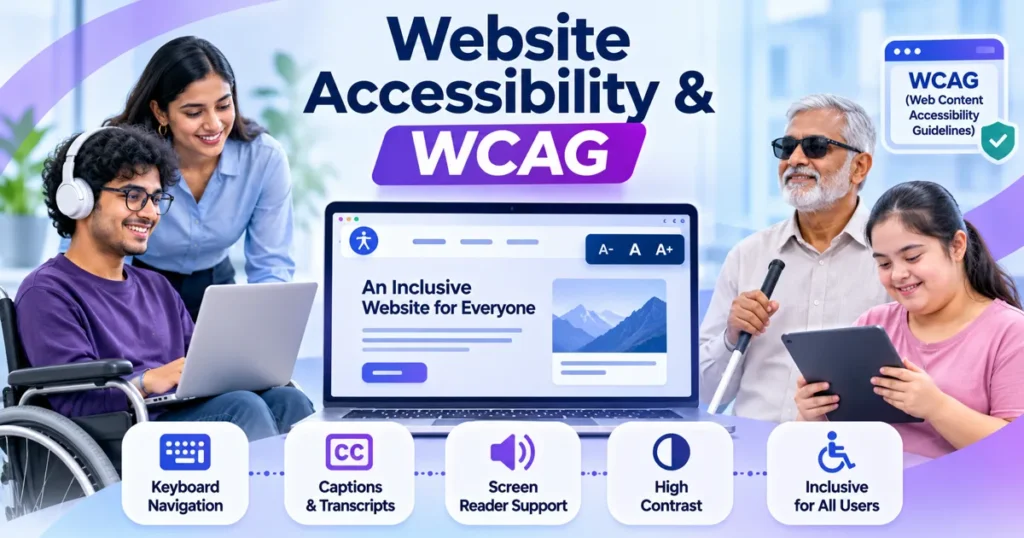
Website accessibility (WCAG) guidance helps businesses make websites usable for people who navigate differently, including visitors who rely on keyboards, screen readers, captions or enlarged text. Start by testing the journeys that matter most, fix barriers in navigation and forms, and work toward a documented WCAG 2.2 Level AA target where appropriate. A single plugin or automated score cannot replace practical testing.
What website accessibility (WCAG) means for businesses
Website accessibility means people can perceive, navigate, understand and operate your site across different abilities and technologies. Someone may browse with a keyboard rather than a mouse, listen through a screen reader, enlarge text, use captions, or need clearer instructions because of a cognitive disability. A well-designed site should support these different ways of working.
WCAG stands for Web Content Accessibility Guidelines. Published by the World Wide Web Consortium (W3C), WCAG is organised around four principles: perceivable, operable, understandable and robust, often shortened to POUR. The guidelines provide testable success criteria rather than a single design template. WCAG 2.2 builds on earlier versions, and the common organisational target is Level AA.
Accessibility is not the same as simply making a website mobile-friendly. Responsive layouts help, but a responsive form can still have unlabeled fields, an inaccessible calendar picker or error messages that screen readers never announce. Accessibility must be considered in content, design, code and testing.
Why accessibility deserves a place in your website plan
An accessible website makes important journeys easier for more customers. Visitors should be able to understand your offer, browse products, fill out a form and contact your team without relying on a specific device or interaction method. These are business goals as well as inclusion goals.
Good accessibility work can also improve general usability. Clear headings help visitors scan; descriptive links explain where a click leads; captions help people viewing video without sound; and visible focus indicators make complex navigation easier to follow. These improvements should be judged by real task completion, not by a promised SEO boost.
Legal requirements depend on jurisdiction, sector and the nature of the service. A business serving customers in multiple countries should obtain qualified advice about applicable rules instead of assuming one WCAG badge automatically establishes legal compliance. WCAG conformance is a technical target; legal obligations are a separate question.
Seven practical accessibility checks to start with
You do not need to rebuild the entire site before identifying its most serious barriers. Start with high-traffic pages and important journeys such as navigation, contact forms, product enquiry, checkout and login. Test with a keyboard and with assistive technology where possible, then document issues and owners.
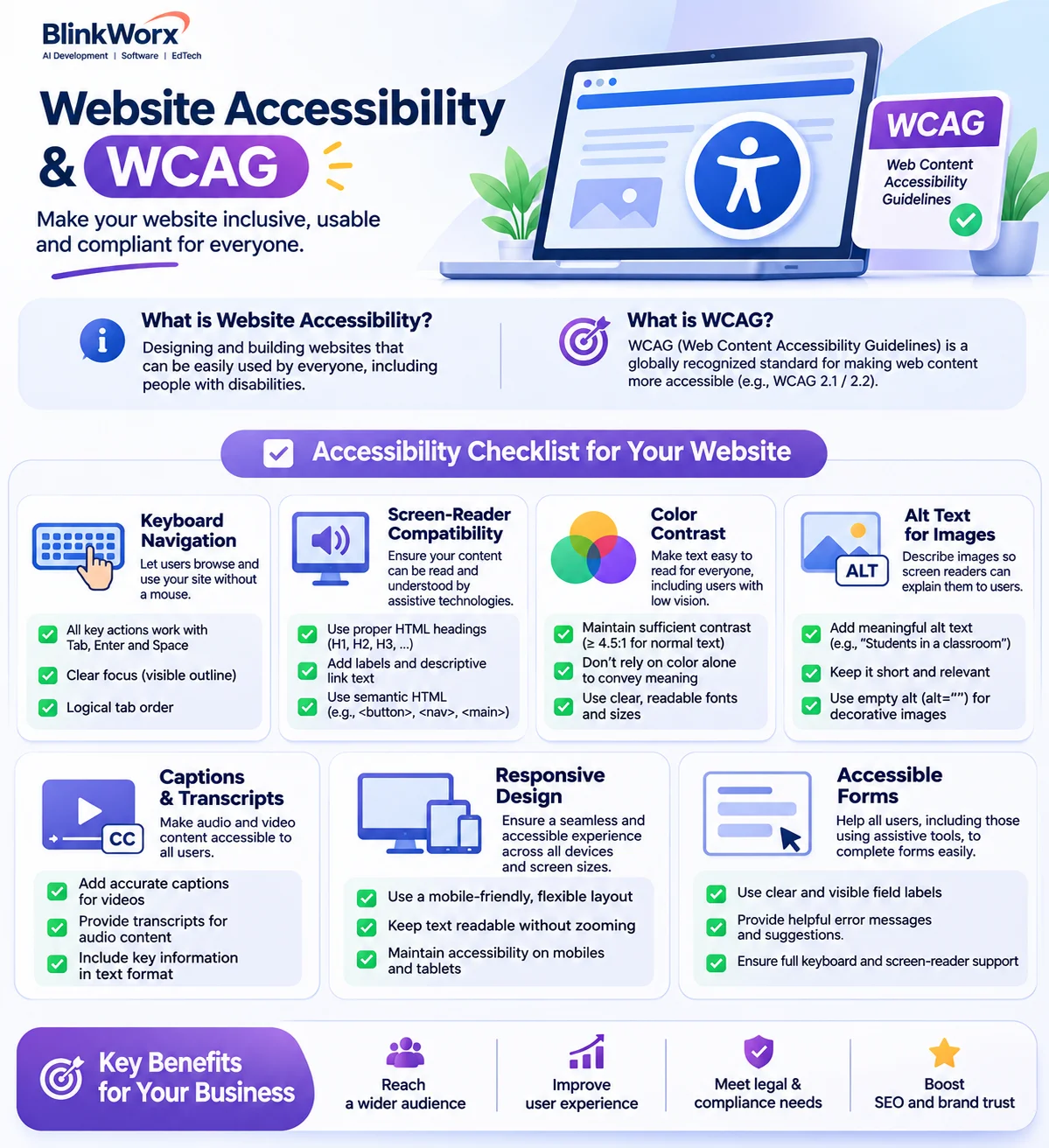
1. Keyboard access: use Tab, Shift+Tab, Enter, Space and arrow keys as appropriate. Menus, modals and buttons should work without a mouse, and keyboard focus must be visible. Avoid keyboard traps that prevent users from moving away from a component.
2. Text alternatives: informative images need meaningful alternative text. Decorative images should generally be ignored by assistive technology. Charts need an equivalent explanation of their important information; a vague phrase such as “image” is rarely enough.
3. Contrast and colour: ordinary text generally needs a contrast ratio of at least 4.5:1 for WCAG AA, while qualifying large text needs at least 3:1. Do not use colour alone to distinguish errors, required fields or chart categories.
4. Headings and landmarks: use a meaningful page title, logical heading levels and semantic page regions. A screen reader user should be able to jump through the structure and understand how sections relate.
5. Forms: every field needs a programmatically associated label, clear instructions and helpful error identification. Required fields, validation messages and confirmation states must not depend on visual placement alone.
6. Media: provide accurate captions for prerecorded video with speech and relevant sound. Transcripts and audio descriptions may also be required depending on the media and applicable success criteria.
7. Zoom and reflow: check that content remains usable when text is enlarged and when the viewport is narrow. Horizontal scrolling should not become necessary for ordinary reading, apart from permitted exceptions such as data tables.
A quick WCAG issue-priority table
Treat this as a triage guide, not an alternative to a full audit. A blocking issue on a key conversion journey deserves attention even if it affects only one component. Repeated issues in shared templates can have a site-wide impact and should be fixed at the component level.
| Issue | User impact | First action |
|---|---|---|
| Keyboard trap | Blocks navigation | Repair focus management |
| Unlabeled form | Prevents correct input | Associate labels and errors |
| Low text contrast | Reduces readability | Update design tokens |
| Missing captions | Excludes video information | Provide accurate captions |
How to test beyond an automated accessibility score
Automated tools can detect some problems, including missing labels, contrast issues and invalid markup patterns. They cannot reliably judge whether alt text communicates the right meaning, whether instructions are understandable, or whether a keyboard journey feels logical. A high automated score is therefore not proof of WCAG conformance.
Combine automated scanning with manual testing. Navigate the site without a mouse, test key flows with a screen reader, inspect zoom and reflow, and check forms after deliberately making mistakes. Include people with disabilities in usability research where practical and compensate them appropriately for their time.
Record each issue with the affected page, reproduction steps, impact, relevant WCAG criterion, recommended fix and retest result. This creates an actionable backlog rather than a long list of unexplained warnings.
How to make accessibility part of design and development
Accessibility is easier to maintain when it is built into the design system. Choose accessible colour combinations and typography early. Specify focus, hover, error and disabled states. Prefer native HTML controls before reaching for complex custom widgets.
Content editors need guidance too. A technically accessible template can become difficult to use when editors paste text as images, skip heading levels or write links such as “click here.” Create short publishing checks for headings, links, image descriptions, tables and video captions.
For a redesign or new build, include accessibility acceptance criteria in the brief and quality assurance process. BlinkWorx can help plan accessible layouts, reusable components and testing through its website development services. The goal is to reduce barriers in the actual user journey, not simply to add an accessibility icon to the footer.
Explore BlinkWorx custom website development for planning and implementation support.
Common mistakes and a realistic improvement roadmap
One mistake is installing an accessibility overlay and assuming the underlying website is fixed. Such tools may offer user preferences, but they do not automatically repair inaccessible markup, broken keyboard behaviour or poorly designed forms. Another mistake is running a scan once and never checking new pages.
Begin with an inventory of key templates and journeys. Next, identify critical blockers and recurring component problems. Fix navigation, forms and shared UI first, then address content issues and lower-priority pages. Retest with the same methods used during discovery and keep a record of unresolved exceptions.
Assign ownership across design, development, content and quality assurance. Accessibility is ongoing work because websites change. New campaigns, plugins and interactive features can introduce barriers even when the original site was carefully tested.
FAQ
What is the difference between WCAG 2.1 and WCAG 2.2?
WCAG 2.2 adds success criteria that address issues including focus visibility, dragging alternatives, target size and accessible authentication. It retains the earlier requirements except for one removed criterion. Teams should check the specific version required by their contract or jurisdiction and use the W3C standard as the reference.
Does WCAG AA mean my website is legally compliant?
Not necessarily. WCAG Level AA is a widely used technical target, but legal duties vary by country, industry and organisation. Compliance may also involve procurement, documentation and operational processes. Ask a qualified adviser which rules apply, and do not treat an automated score or an accessibility widget as legal certification.
Can an automated tool find every accessibility problem?
No. Automated tools are useful for repeatable checks but cannot evaluate every user experience issue. They may miss confusing instructions, poor keyboard interactions or alternative text that is technically present but meaningless. Manual testing, assistive technology checks and feedback from people with disabilities provide essential additional evidence.
What should a small business fix first?
Start with pages that customers must use, such as navigation, contact forms, booking, login and checkout. Fix barriers that prevent completing a task, especially inaccessible controls, missing labels and keyboard traps. Then improve shared components and content patterns so the same problem does not recur across the website.
Will accessibility improvements automatically improve Google rankings?
No. Accessibility and search optimisation overlap in areas such as meaningful headings, descriptive links and usable page structure, but WCAG conformance is not a guaranteed ranking shortcut. Treat accessibility as a user experience and inclusion requirement first, and evaluate search performance separately using relevant search and conversion metrics.
Key takeaways
- WCAG provides testable criteria; accessibility requires more than responsive design.
- Prioritise keyboard access, forms, text alternatives, contrast and captions.
- Combine automated checks with manual and assistive technology testing.
- Treat legal obligations separately from a technical conformance target.
- Maintain accessibility through design, development, content and QA processes.
Making accessibility part of your website
Website accessibility (WCAG) improvements are most valuable when they remove barriers from real customer journeys. Begin with a focused audit, prioritise fixes that affect task completion, and build accessibility into everyday publishing and development. An inclusive site is a more dependable site for more visitors.
Get a free consultation
Contact BlinkWorx for a free consultation about accessible website development, contact us or message us on WhatsApp.
Further reading: W3C: Web Content Accessibility Guidelines (WCAG) 2.2.